
TUCOWS Review of InfoManager
TUCOWS has awarded InfoManager their highest rating.
Business Week Calls InfoManager the Template For the Future of Information Management
The Race for the Ultimate Info Organizer
by Charles Haddad
...My hard drive is a snarl of info tidbits....having spun this giant hairball of information, how do I find the one piece I need right now?
Therein, my friends, lies the real challenge of the Internet. How can we make sense of the tons of information we gather off the Net, organizing it so it's easy to retrieve and reuse? The person who figures out a surefire solution will become the Bill Gates of the early 21st century.
On the Mac platform, the race is well under way for the title of ultimate info gleaner and organizer.
InfoManager, developed by Mac shareware developer Steve Becker, is my favorite.... What appeals to me about InfoManager is that it's small, always on, unobtrusive, and easy to figure out and use. It works like a digital clipping service, in effect supercharging the Mac's built-in clipboard feature and letting it save many different items at the same time.
What you see on the screen is a small window, which you can reduce to a simple bar on top of the screen with the click of a button. You grab and save information by highlighting it and dragging it atop the InfoManager window or assigning keyboard commands to do the same thing.
Information is saved in a text file. The default word processing program is SimpleText, which comes installed on every Mac, but you can easily use Microsoft Word or Nisus Writer [and many others].
Storing information, of course, is only half the battle. Organizing it in a meaningful way is the other -- tougher -- half. With InfoManager, you can store information in a generic file called storageboard that works as a digital bulletin board. Or you can create your own files [with InfoManager] and store them away in your own folder system. And when you've forgotten where you've filed away that critical name, you can use InfoManager's powerful search feature to find it, checking by keywords, strings, or dates, for instance.
InfoManager also lets you date, index, and annotate saved information. I find this last feature is especially useful since I always forget why I saved something in the first place. The program also has powerful editing tools that let you capitalize sentences or remove funky e-mail symbols [and much more].
The full article is available at:
http://www.businessweek.com/bwdaily/dnflash/feb2001/nf20010221_698.htm
About.com Mac OS Shareware Pick of the Week
Pick for January 17th - 23rd, 2001:
InfoManager
As the name implies, InfoManager is an information manager for the
Mac OS. It provides you with a variety of useful ways to organize
information on your Mac and information from the Internet. It is a
great way to manipulate, acquire, print and manage information.
http://macos.about.com/compute/macos/library/blshareware.htm#pick
1984-Online Review of InfoManager
by Chris Patmore
Now we are truly entrenched in the 'information age' of the internet and the size of our storage devices has grown beyond our (earlier) wildest expectations we really need a way to manage all this information. Enter InfoManager from MacEase...this simple and surprisingly small app does so much I don't even know where to start. One thing I am going to try and avoid is listing all its features. The ReadMe file that comes with the installation ran to 11 pages outlining its uses and giving some helpful tips. The best thing to do is download the 10 day demo and see which features you find most useful....
For those people that like to keep their text editing tool as basic as possible, ie SimpleText or TextEdit, InfoManager adds a floating palette of enhancements that make them just that little bit more useful with single click simplicity. These include changing text to upper or lower case, alphanumeric sorting, date stamp, auto save, character generator (displays and inserts any character within a font set), a glossary function and find/find and replace. These features are hardly the main reason for buying this programme...but they are a nice bonus.
They do start to become even more useful when you tap into InfoManager's other tools. Ever wanted to copy some information from a ReadMe file and found that it is read only? Drag it onto the InfoManager Tools palette and you can copy and edit the text to your heart's content.... Or the same for a Clipping file. You can now extract the text into SimpleText (or TextEdit, Word, Nisus Writer, BBEdit or even WordPerfect - it's your choice).
Running and editing the 1984 ezine and website does require a certain amount of organisation. The ezine is done in a very simple method of folders within folders on a disc. When the issue is finished everything is archived and that's it. The website is a different matter. There is a much greater volume of material to keep track of...actually finding anything is a bit of a nightmare. InfoManager is an ideal tool for this. Because the InfoManager is always active it is easy to create a file [with InfoManager] with the appropriate name, highlight the text in the browser and add it to the file. Then once I'm in Dreamweaver I select where I want to insert the code, choose it from the [InfoManager] list and copy and paste it in place - all without opening another programme.
Another useful feature is its ability to retain the contents of the Clipboard between start ups and more importantly, crashes (which do happen occasionally). You can also continuously add information to the Clipboard without overwriting it, providing you do it through InfoManager and not directly in the programme you're using.
All in all it is a pretty neat package.... The palettes are easy to hide or access when needed so they don't offend or detract from the rest of the desktop....
If you process a lot of text based information (and this only works with text)...I'd recommened it without any hestitation.
Because of its minimal requirements (System
7.5.3, 68020 processor, 1Mb disk space and 520k RAM) it will work on
most machines.... You should certainly give it a try....
MacFormat Magazine Review of Navigator
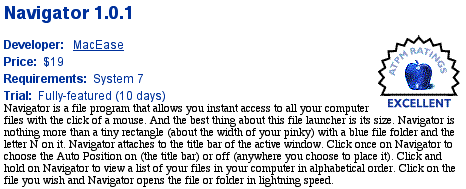
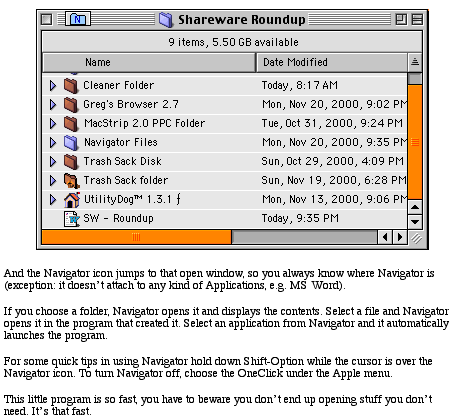
Navigator (no relation to the Netscape program) is an incredibly powerful tool for finding your way around your Mac. An installer places the Navigator files in the right place; when you restart your system you'll notice a small icon with an "N" in it appears at the top of any open window. If you click and hold on the icon, a complete list of the hierarchic structure of your system is displayed. The lightning-fast speed with which Navigator works means you can access files several levels down in less than a couple of seconds.
The best thing about this utility is the simple way it works. If you know how to click a mouse you can use it. There are no keyboard short-cuts to remember, no menus to access - just click and navigate.
You can also use Navigator when you are in a Save or Open dialog box, which makes the whole process quicker. When using this option, Navigator first locates the folder where the active application is stored for you. If you prefer to save your files elsewhere, the full list of every other folder on your hard disk is easily available.
Navigator is very quick and easy to use, and saves a great deal of time wading through the clutter of open windows that often appears on the Desktop.
MacFormat shareware rating 88% (from MacFormat (UK) , issue 71, Christmas
1998.)
© 1998
MacFormat
Magazine
About This Particular Macintosh Review
http://www.atpm.com/7.05/roundup.shtml
New Review 8/00 -- File Dudes
Awards WebPrint Plus Their Highest Rating and
Says:


New Review 8/00 -- The MacHome Journal's Hot Tips Newsletter Says:
MAC EASE AT MACEASE
WebPrint Plus 3.1
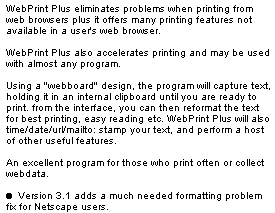
WebPrint Plus is a great, easy-to-use utility that provides you with a fast and flexible way to gather, save, and print information from almost anywhere.
It eliminates most problems experienced when printing from a web browser, accelerates printing, saves you money by reducing the amount of ink/toner and paper used when printing, and provides powerful options when gathering, saving, and printing information that are not available in any other program!
Cool!
Review of WebPrint Plus (Macdownload.com --5/5/99)

File Dudes Says:


Mac Report Review Of WebPrint Plus 1.0
WARES OF THE WEEK / Milo Standish
WEBPRINT PLUS 1.0
WebPrint Plus, by Stephen Becker (http://www.kagi.com/MacEase/), accomplishes something any good Shareware program should. It fills a very specific need, and does so quite nicely. If you're tired of copying and pasting various bits of text to get what you need, WebPrint may be your lifesaver. The best example of WebPrint's usefulness is with Netscape Navigator (or Explorer, for those who are so inclined). I, for example, often find bits of text on various Websites that I want to keep. The normal procedure is to highlight the text, copy it, and paste it into my word processor. Or, for larger selections, I do a view source and get the whole html page. Webprint, however, allows me to highlight the text and click one button from WebPrint's floating palette. The text is then saved to a file called the PrintBoard, where it can be retrieved and printed at leisure. You can also bypass the PrintBoard and print the selection directly.
WebPrint's flexibility offers several ways to use its features. There are three ways to save selections: save the text to the PrintBoard with a date and time stamp (handy for those who make many selections over a period of time), save the text without the date and time stamp, and save the text and, at the same time, print it. WebPrint also offers a quick print with the 'Print One Copy,' which will print without bringing up a dialog box (and without saving to the PrintBoard). The Print Selection button brings up the print dialog box to let you print multiple copies, or whatever. Additional options with WebPrint include viewing, printing, or deleting the entire contents of the PrintBoard.
I should add here that a web browser is not the only instance for using WebPrint. You can use it in just about any program that lets you highlight text. Maybe you're reading a lengthy Word document of sifting through a bunch of email. Use WebPrint to save your favorite lines or passages and give up the copy-paste routine we are all so tired of.
WebPrint's floating palettes offer some flexibility of their own. There is a compact-view palette and a full-view palette, both of which collapse down to a small floating icon for when you are not using it. (If you're wondering, I've found that I prefer the full-view palette. It's a little bigger, but it gives access to more options.) If you want to shut off all the palettes, you can de-select them in the Apple Menu.
WebPrint uses OneClick, which to be honest, I'm not too familiar with. But if you don't already have OneClick, WebPrint will install it for you. Nice and easy! You can download a fully functional version that lasts 21 days. If you like it, the cost is only $15, which is worth it if you find it at all useful (which I think you will). There is even a 30-day money back guarantee! WebPrint may not be the kind of program that everyone will flip for, but I think quite a number of you can put it to good use. Get WebPrint at http://www.kagi.com/MacEase/.
© 1998 Digital Cactus/Milo Standish
The Mac Report
2/00 - Italian Mac
User Group says of SimpleText Enhancer:
"Try it: you won't be able to live without
it!"
http://www.italiamac.net/sniffer
2/00 - The Mac Observer says: "A great utility
has been updated to be compatible with Mac OS 8 through Mac OS 9.
MacEase has announced the release of SimpleText Enhancer 2.0.1...The
Mac Observer Spin: As most veteran Mac users will attest, SimpleText
is a great utility. The improvements and features offered by
SimpleText Enhancer turn it into a viable word processor.
http://www.macobserver.com/news/00/february/000203/simpletextenhancer201.shtml
SimpleText Enhancer 2.0
by Steve Becker. Review by Josie
Farmer, CMUG
Requirements:
Any Mac 68020 or later, OS System 7.0
to System 8.1. Not currently compatible with System 8.5
- a free updater will be released within one month.
As all Mac users know, SimpleText has
always been included with every Mac, albeit with very limited
features. SimpleText has always been seen as an
application-in-a-hurry, with very basic and minimal use.
For many years, Mac users have been totally frustrated with the lack
of features. My own personal gripe has always been the lack of being
able to copy and paste across the application.
Now, however, things are changing, and we have SimpleText Enhancer
2.0 - a marvellous utility - actually much more than that - a whole
application in itself, that turns SimpleText into a very
happy,
functional and full featured application.
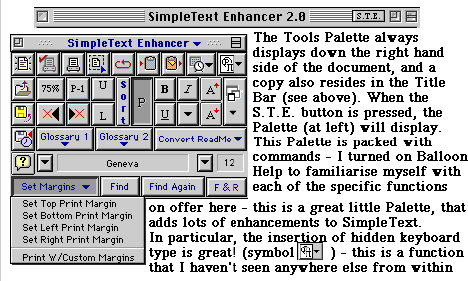
Also, as can be seen above, all four margins can be set to the document, on the basis of 100=1", so, a .6in margin would be set to 60, .8in to 80 etc. This eliminates the need for fractions & decimals.
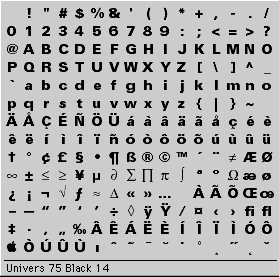
When you hold down the button from within the
Palette, this grid will appear to show the hidden font options. You
then use the mouse to select which character you wish to insert into
the document - brilliant!
These hidden characters will, obviously, differ between the fonts
that you select, and must be the current font selected.
A very good
idea!..
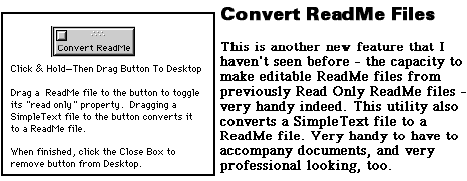
More Features of
Enhancer...
There are many other features of STE, just some of them here:
Time stamping of any document
Ability to alphanumerically Sort selected rows of the document
User configurable Auto-Save feature
Find, Find Again and Find and Replace features
Upper or lower case text changeability on the fly
Summary: SimpleText Enhancer is a
brilliant piece of software - and very highly recommended for all Mac
users.
Review of SimpleText Enhancer 2.0
by Josie Farmer, Cumbria MacUserGroup. February 1999.
SimpleText Enhancer Receives
FileDude's Top Rating (June 1999)



ApplicationSentry is a great tool for getting instantaneous feedback
on how your applications use their allocated memory, and prevent
crashes from memory shortage. SystemSentry does the same thing in
regard to the content of your System Folder.
Both these tools provide a unique way to tune and optimize your computer. They are ideal in regard of the extra memory necessary by some applications under MacOS 8.6 - receiving a warning when memory is getting low, you have a chance to quickly and permanently correct the problem, as opposed to the old, time-consuming, trial-and-error method.
May 1999
Application Sentry
Ted Bade
ApplicationSentry is an easy-to-use yet very effective shareware application for the novice to intermediate Mac user. This program monitors the RAM used by applications you run and warns you when 80% or more of the memory allocated to the program is used up. While this might seem very basic, many of the problems Mac users face are caused by insufficient RAM.
There are two aspects of RAM usage a Mac user should understand:
• how much RAM does the Mac have? This is the total RAM available to all applications and for the MacOS;
• how much RAM is allocated to a particular application, an often overlooked RAM consideration.
Quite often a program will crash, lock up, slow down, or "unexpectedly quit" because the application wants to use more RAM than is allocated to it. Sometimes the user will get a cryptic message like, "There is not enough RAM for application X to continue." This is especially confusing when you find your Mac has 64MB of free RAM!
While the computer may have lots of RAM, the troublesome application has not been told to use enough of it. To determine how much RAM is allocated to a particular application, click once on the application's icon, then do a "File: Get Info" on it. MacOS 8.5+ users will need to pull down the "Show" menu and select Memory; others will see memory allocation at the bottom of the window that opens. You will see three numbers, suggested, minimum, and preferred. The suggested and minimum values are set by the programmer and cannot be changed. The preferred value is also set by the programmer, but can and should be changed to suit your particular needs. This number present when the application is installed is a best guess by the programmer based on an average machine, but not the best for all situations.
Determining exactly how much RAM an application should have is usually done by trial and error. If the program crashes a lot, give it more and see if that helps. Expert users usually have a good "feel" for RAM requirements of many applications. However, using ApplicationSentry makes this process a lot easier for everyone.
Once installed, ApplicationSentry runs in the background. Its small window shows exactly how much RAM the application in the foreground is using, what its preferred RAM amount is, and the percentage of this preferred amount that is in use. The name of the application and RAM information is shown in green text for normal situations, yellow for caution, and red indicates definite problems.
An alarm can be set to indicate that most (or all) of the RAM is used up. The default is set to 90% of the preferred value. If the alarm value is reached, ApplicationSentry alerts you with a sound
The display can be set to simply display text, or to display text and a bar graph. You can choose to have it in the foreground all the time, or you can close it, and it will reappear when an alarm condition is met.
With ApplicationSentry running, you may find that a particular application is often close to using up all the RAM allocated to it. To prevent crashes and slow downs, all you then need to do is increase the preferred RAM size for that application.
This program is a definite "must have" for novice Mac users. Let it run in the background and alert you to memory problems. When it does, fix the problems, and your Mac will be even more trouble-free than before!
ApplicationSentry is written by Steve Becker and the shareware fee is $19. To learn more about this program and to download a trial version, visit http:// www.kagi.com/MacEase, and follow the link for ApplicationSentry.
MacEase Home Page | Top Of Page | WebPrint Plus Page | MarginMaker Plus Page
WriteNow Enhancer Page | Navigator Page | SimpleText Enhancer Page
ApplicationSentry Page | SystemSentry Page | AOL Assistant Page